
Snow on your Mac, all the way down to the Dock.
macOS has no snow setting, so it takes an app. Season Jar is a tiny menu-bar app that makes it snow on your Mac desktop: the flakes fall behind your apps, pile up on top of your windows and drift against the Dock.
For a MacBook or a desktop Mac with macOS 14 or later. From $9, pay once. All sales are final, so try the demo first.
watch it pile up
Snow that sticks.
keep scrolling and it keeps snowing. the longer a window sits still, the deeper its cap gets, same as on your Mac.







the map
Where the snow lands
Season Jar knows where your windows and the Dock are, so the snow has somewhere to land.
- 1
Behind your apps. it falls on the desktop, so your work stays clear. want it in front? that’s a switch.
- 2
On top of your windows. it piles deeper while a window sits still. drag it and the snow rides along. jerk it and a bit spills off; shake it hard and it all comes off.
- 3
Against the Dock. a drift builds up behind it while it snows and melts away when it stops.
- 4
On the Dock, if you like. a little ridge can settle on top of it too.
- 5
Every display. it snows on each screen you have connected.
live mode
Snow from your own sky
switch on Live and pick a town. when it snows there, it snows on your desktop. strong wind turns it into a blizzard that leans the way the real wind blows, and when it stops there, the drift by the Dock melts away.
you never share your location: you type a town, Apple Maps finds it, and only that town’s location goes to MET Norway for the forecast. more in live weather on your Mac.
snow toys
Play in the snow
the drift along the bottom of your screen isn’t only for looking at.
A snowball game
hold Option and sweep through the snow on the ground to roll snowballs that grow. bowl them, flick them, throw them, stack them into snowmen.A shovel
pick it up and dig out the drift. each scoop throws the snow the way you dug, and the holes fill back in while it snows.A snowplough
when the snow along the bottom gets deep, a little plough comes by and clears it.

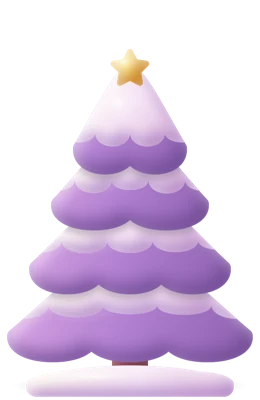
the tree, the snowman you build piece by piece and the cabin can all be picked up and thrown onto your windows: that’s in desktop toys you can throw. for Christmas there are fairy lights under the menu bar, and Santa, who flies over now and then once you switch him on and drops presents you click open.



when you step away
A snow screen saver
a night sky with an aurora and stars, a snowdrift, the cabin with its windows lit and the tree with its star, and snow falling over all of it. it works on its own, so the app doesn’t need to be open.
it comes with the app as Season Jar.saver. double-click it once to add it.
open System Settings › Screen Saver and choose Season Jar. on macOS 26 and later it’s in System Settings › Wallpaper › Screen Saver.
its options pick the weather (snow, unless you choose another), how much falls, and whether the snowdrift and the cabin and tree show.
the polite part
It stays out of your way
every part of it has its own switch, in the menu-bar panel and in Settings.
Clicks go straight throughthe snow lets every click through to whatever’s underneath.
Off in a keystrokepress Control Option W from anywhere, or record your own shortcut.
Pause for a while30 minutes, an hour, three hours or until morning.
Steps aside for full screenwhile an app is full screen, the weather hides. that’s a setting too.
And your battery? It’s built not to. It only draws while you can see your desktop: when apps cover it, everything stops except the strip by the Dock, which keeps going at a low frame rate. Nothing is drawn while your screen sleeps, it drops to 30 frames a second in Low Power Mode, and Efficiency mode in Settings keeps it there all the time if you like.

good to know
Questions
How do I make it snow on my Mac desktop?
macOS has no snow setting, so it takes an app. Open Season Jar and it starts snowing right away. Click the snowflake in your menu bar to pick Blizzard instead, change how heavy it is, or choose Live, which follows the weather in your own town.
Does the snow really pile up on my windows?
Yes. It settles along the top edge of every app window and keeps getting deeper while a window sits still. Drag the window and the snow rides along; shake it and it tumbles off. Petals and leaves settle the same way in spring and autumn.
Can the snow fall in front of my windows?
Yes, that’s a switch. Out of the box it stays on the desktop, behind your apps. Choose “In front of apps” in Settings, or flip it in the menu-bar panel, and it falls over your windows too. Your clicks still go straight through.
Does it work on a MacBook? Which macOS do I need?
Yes. Season Jar needs macOS 14 or later, and a MacBook gets everything a big display does: snow on your windows and a drift by the Dock. If yours has a notch, the cable car hangs from it.
Is there a free snow app for Mac?
Season Jar isn’t free: it’s one payment, from $9, and the demo is there to play with first. If you’d rather not pay, a few snow apps are free on the Mac App Store; snow apps for Mac, compared names them, with what each one does.
Is there a snow screen saver for Mac?
Yes, one comes with Season Jar: a night sky with an aurora, a snowdrift, the cabin and the tree, with snow falling over it all. It runs on its own, so the app doesn’t need to be open. Here’s how to pick it.
Does it work with more than one display?
Yes. It snows on every display you have connected.
What happens with full-screen apps?
The weather steps aside while an app is full screen. If you’d rather keep it, switch off “Hide during full-screen apps” in Settings.
Can the snow be a different color?
Yes. Natural white, a soft color, anything from the color picker, rainbow, or a roll of the dice. Each kind of weather keeps its own color, so pink snow doesn’t mean pink rain.
How do I turn it off quickly?
Press Control Option W from anywhere, or record your own shortcut. You can also pause it for 30 minutes, an hour, three hours or until morning.
Will it slow my Mac down or drain the battery?
It’s built not to. It only draws while you can see your desktop: when apps cover it, everything stops except the strip by the Dock, which keeps going at a low frame rate. Nothing is drawn while your screen sleeps, it drops to 30 frames a second in Low Power Mode, and Efficiency mode in Settings keeps it there all the time if you like.
Does it replace my wallpaper?
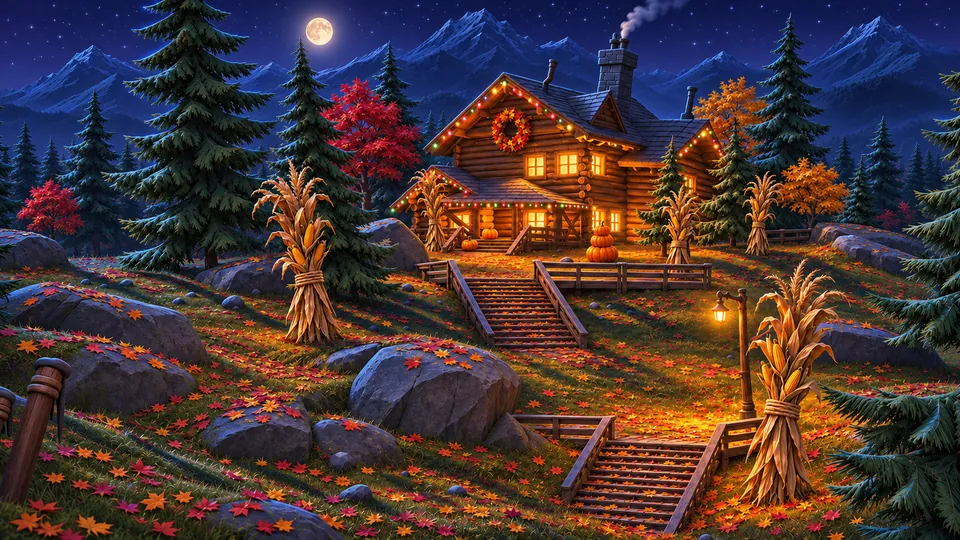
No. It draws over the wallpaper you already have, behind your apps. Twenty-four paintings come with it if you want them (the cabin in every season by day, at dusk and by night, and more), but your own wallpaper works just as well. The winter one at the top of this page is one of the cozy cabin wallpapers.
Is Season Jar out yet?
Yes. Season Jar for Mac is a free download that needs a key to run (macOS 14 or later, from $9, paid once). See the plans, or play with the demo first: there’s no trial.
Is there a Windows version?
Not yet, and there’s no date. You can get the $5 Windows golden ticket now: lifetime access the day it launches (it’s not early access). It’s on the home page.

Season Jar for Mac
Let it snow on your Mac.
pay once, it’s yours. not sure yet? the demo on the home page runs right in your browser.
macOS 14 or laterfrom $9, pay onceAll sales are final, so try the demo first.
On Windows? It’s not out there yet, but the $5 golden ticket gets you lifetime access the day it lands.
More little guides
A cozy Mac desktop
a warm wallpaper, a tidy desktop and a little weather. a recipe.
Live weather on your Mac
your town’s real weather on the desktop, the temp in your menu bar.
Cherry blossoms and falling leaves
petals in spring, leaves in autumn, fireflies on summer nights.
Desktop toys you can throw
a tree, a snowman and a cabin you can pick up and throw onto your windows.
Snow apps for Mac, compared
the main snow apps for mac side by side, and when another one is the better pick.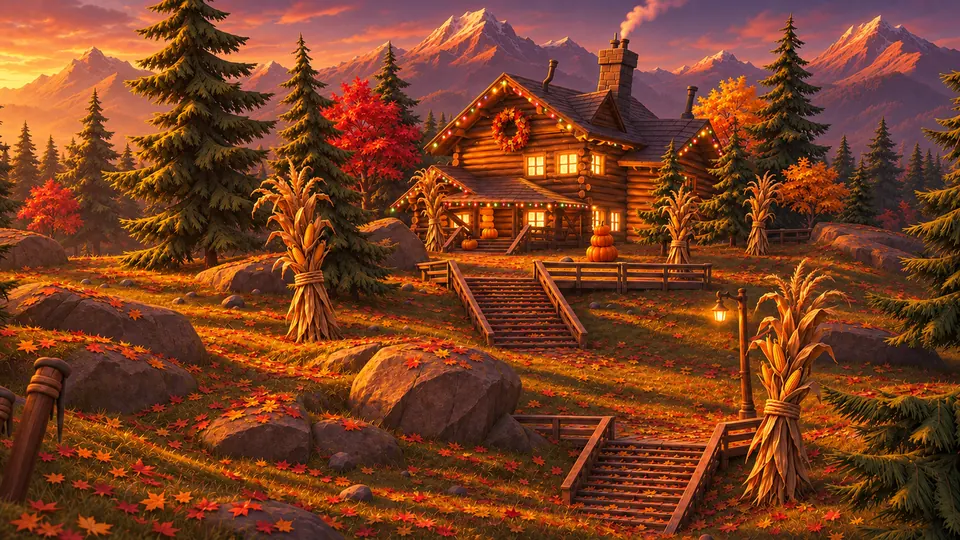
Cozy cabin wallpapers
one cabin, four seasons, by day, at dusk and by night. twelve of them, in 4K.
Updated · All guides